.svg)








So you're using WordPress to run your site. No problem! It takes just a few simple steps to get ViralSweep up and running on WordPress.This tutorial will show you how to add the Full Page, Widget, and Popup styles to your WordPress site.Please click here to see our updated documentation on how to install ViralSweep on WordPress.
Different Integration Styles
Let's now see how we can integrate ViralSweep in different styles.
Full Page
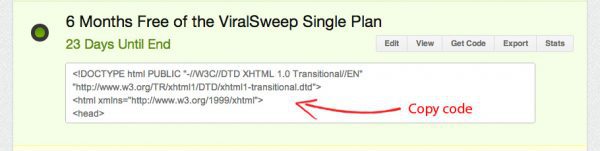
1) Go to your ViralSweep dashboard, and on your sweepstakes, click 'Get Code' and copy the code for your sweepstakes.
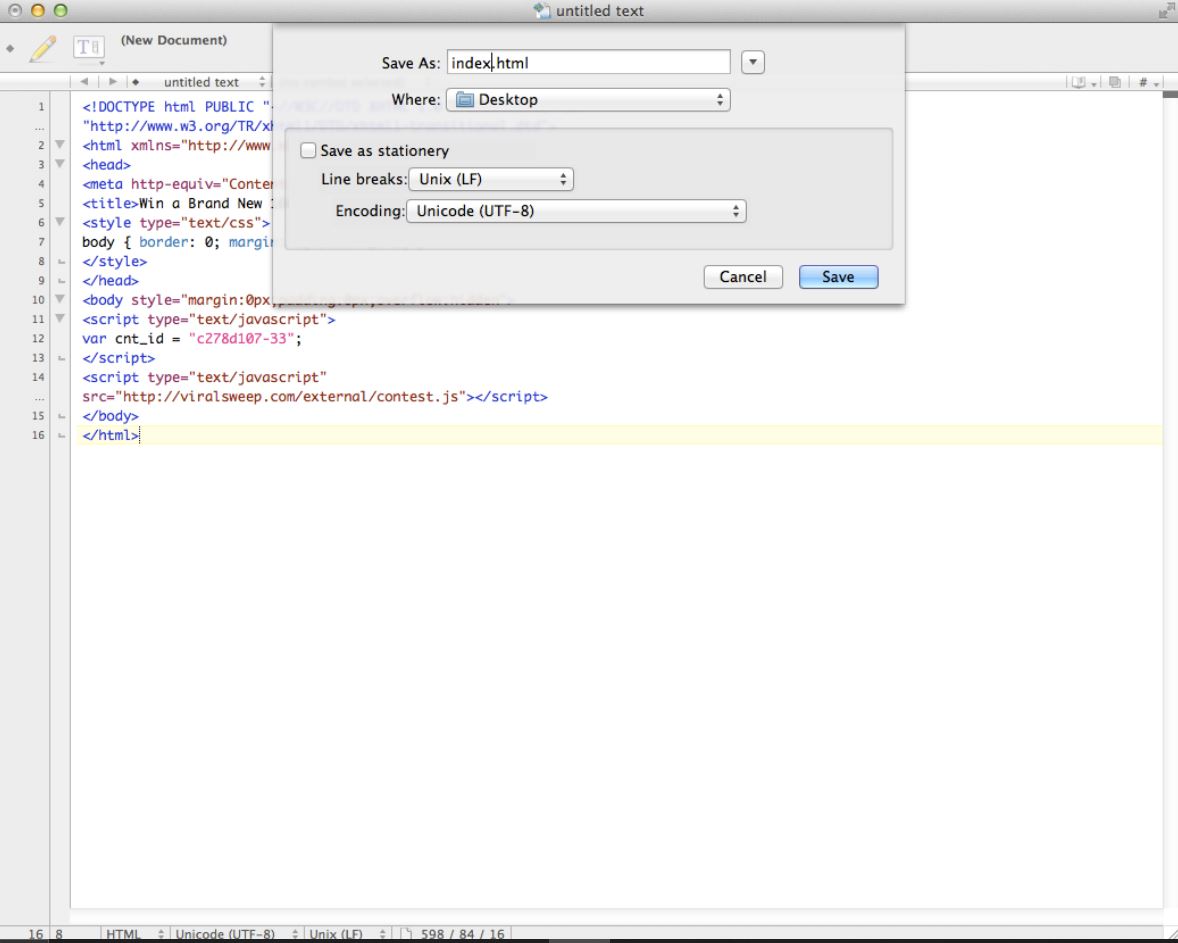
2) Next, paste the code onto a blank HTML file. Alternatively, you can email this code to your developer. Save the file with the proper extension. For this example, we’ll save our file as ‘index.html’.
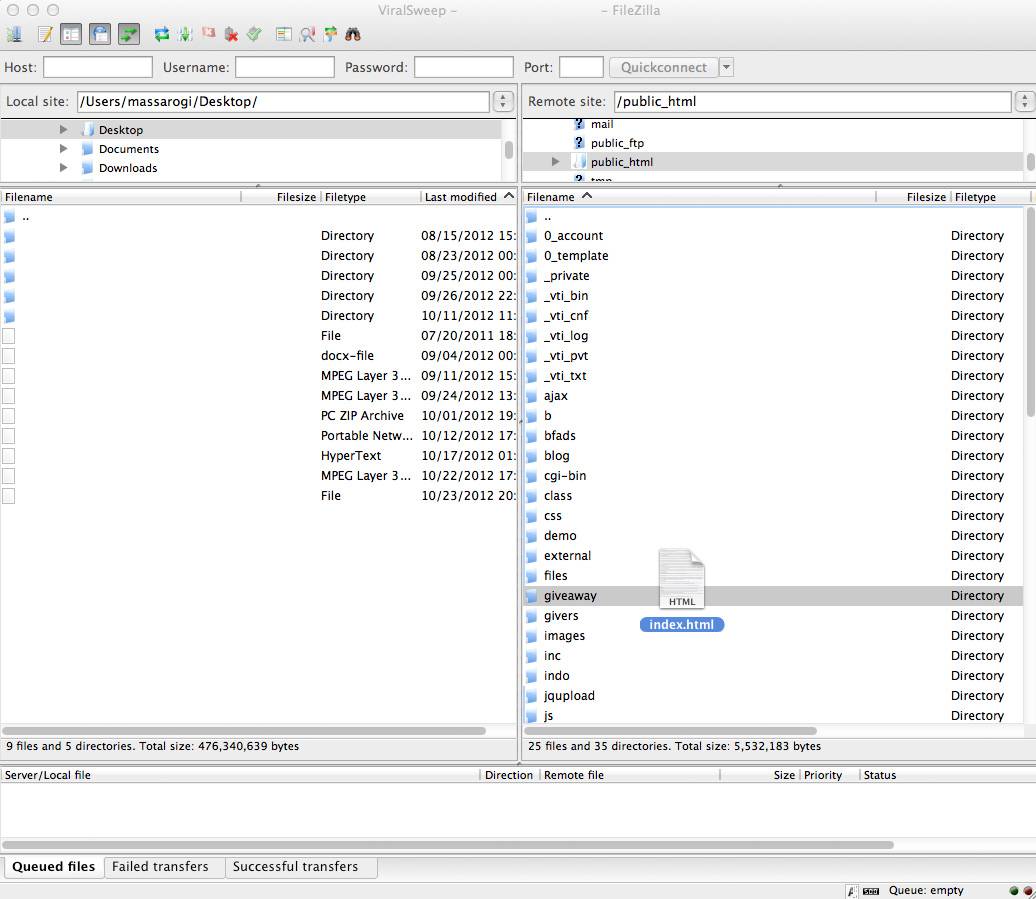
3) To upload this file to your server, you will need to use an FTP client. If you’re not sure how to do this, just send the file to your webmaster, and they will be able to upload the file for you.
For this example, let's say you want your sweepstakes to show up at the URL 'yourwebsite.com/giveaway'.
In order to do this, we need to create a new directory on our server using our FTP client called ‘giveaway’. Then, we simply drag and drop the ‘index.html’ file that we created into our ‘giveaway’ folder.
4) That’s it! Visit the URL where your sweepstakes should appear and it will now be showing.
[optin-monster-inline slug="toavhskxmqsb2vqgyyp0"]
Widget
To add the Widget to any page on your WordPress site, all you have to do is copy your Widget code from your ViralSweep dashboard, and paste it into the 'Text' editor on any page, not the 'Visual' editor.Once you paste in the code, update or save your page, and the widget will show. Please note that if you click the 'Visual' editor, you will not see the giveaway. Also, if you try to preview the page before saving it, the Widget will not show up until you refresh the page twice.
Popup
To add the Popup to your Wordpress site, simply navigate to 'Appearance' ---> 'Editor' in your Wordpress admin panel. Locate the 'Footer' file, and paste the code above the closing tag. Save your changes, and the Popup will display on every page.
Final Words
We hope this tutorial helped you integrate ViralSweep on your WordPress site easily. Start using ViralSweep for viral marketing today![optin-monster-inline slug="k1uxnhedqinoijf5ydlb"]
.avif)